Admin Dashboard
Guide for administrators to manage products, inquiries, and users.
Admin Dashboard Guide
The Admin Dashboard provides complete control over the Greenacres Coffee Platform.
Access
URL: https://admin.greenacrescoffee.com/
Admin Credentials:
- Use authorized credentials provided by the platform administrator.
Only users with the admin role can access this dashboard. Regular buyers will be denied access.
Dashboard Overview
The main dashboard displays key metrics:
- Total Users: Registered buyers and admins
- Active Inquiries: Pending sample requests
- Total Products: Coffee offerings in the catalog
- Revenue Metrics: Monthly and yearly summaries
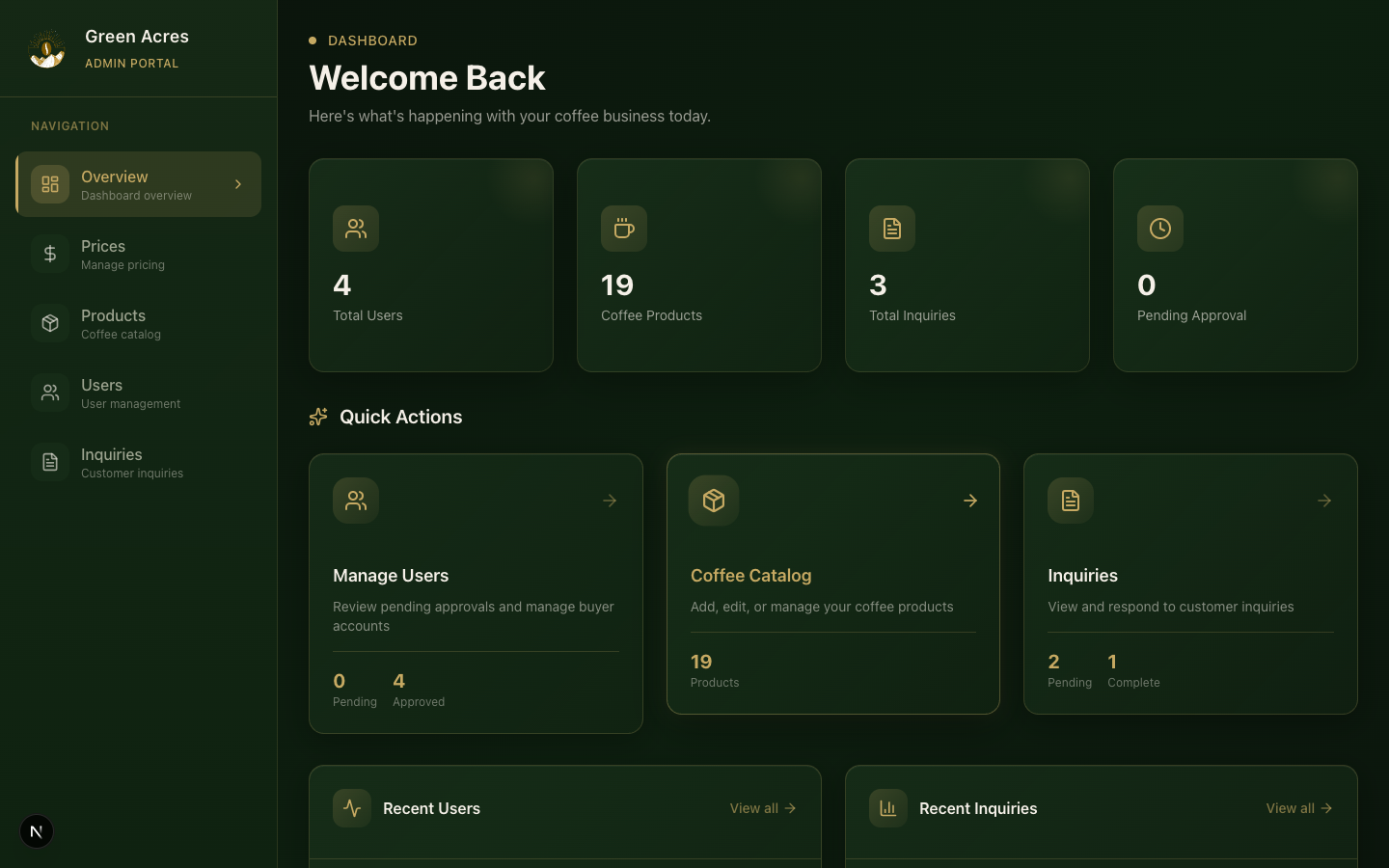
Admin Dashboard in Action
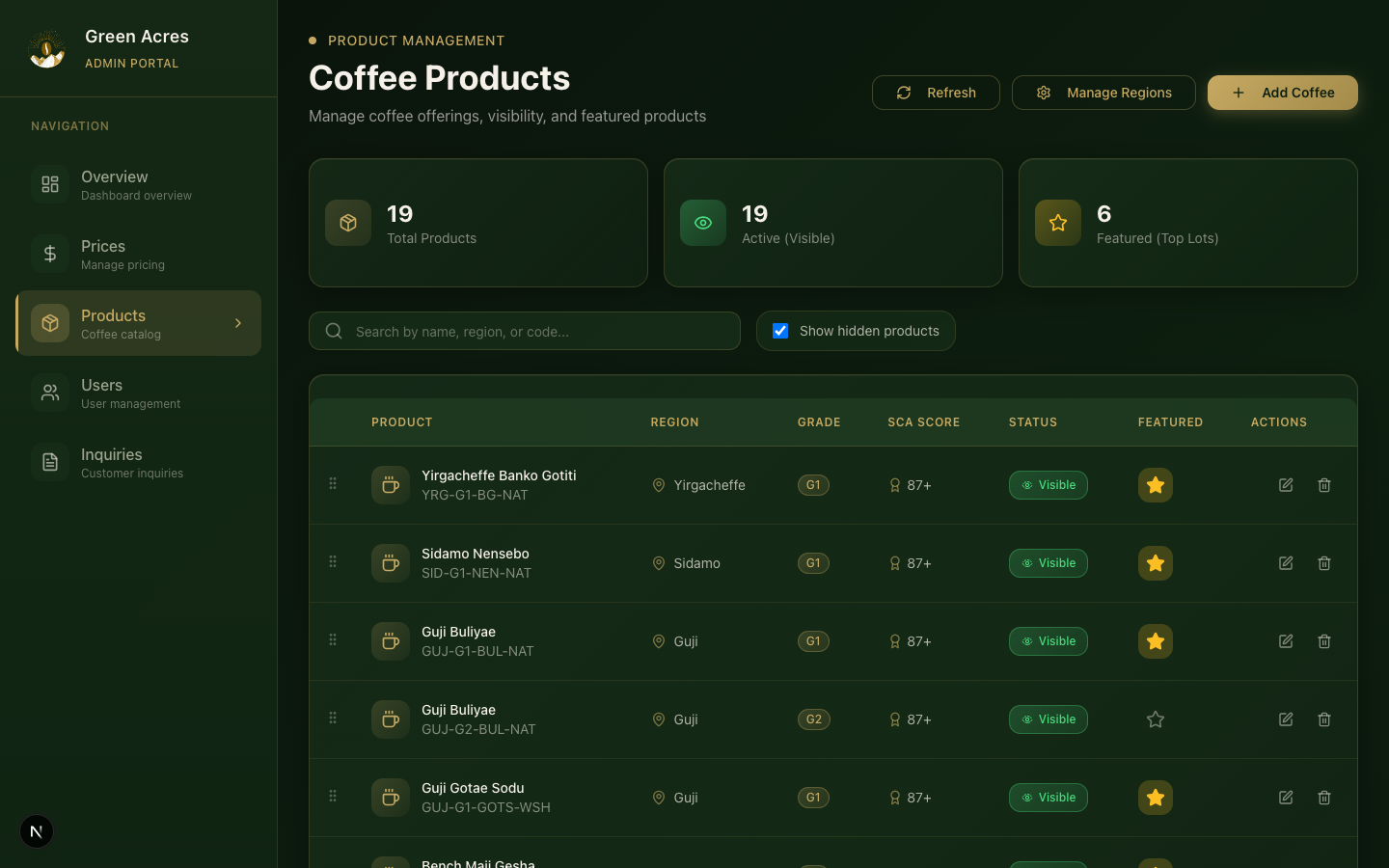
Product Management
Viewing Products
Navigate to Products in the sidebar to see all coffee offerings in a sortable table:
| Column | Description |
|---|---|
| Name | Coffee name and origin |
| Region | Ethiopian growing region |
| Grade | Quality grade (1-5) |
| Price | FOB price per kg |
| Stock | Available quantity |
| Actions | Edit / Delete |
Adding a New Product
- Click "Add Coffee" button
- Fill in the product form:
- Name, region, and grade
- Processing method
- Flavor notes
- Price and stock quantity
- Upload product image
- Click "Save"
Reference Code Standard
To maintain consistency in the catalog, reference codes should follow this strict naming convention:
Format: [REGION]-[GRADE]-[STATION]-[PROCESS]
- Region (3 letters):
YRG(Yirgacheffe),SID(Sidamo),GUJ(Guji),LIM(Limmu), etc. - Grade (2 letters):
G1,G2,G3,G4 - Station / Kebele (2-3 letters): Initials or a short code for the washing station (e.g., Banko Gotiti =
BG). - Process (3 letters):
WSH(Washed),NAT(Natural),HNY(Honey)
Example: SID-G1-NEN-NAT (Sidamo Nensebo Grade 1 Natural)
SCA Score Formatting
When entering the SCA Score, please enter the number only (e.g., 87 or 88.5).
Do not add a + sign (e.g., 87+). The platform automatically appends a + in the UI to indicate "and above" where appropriate.
Editing Products
Click the Edit icon on any product row to modify its details.
Deleting Products
Click the Delete icon and confirm to remove a product.
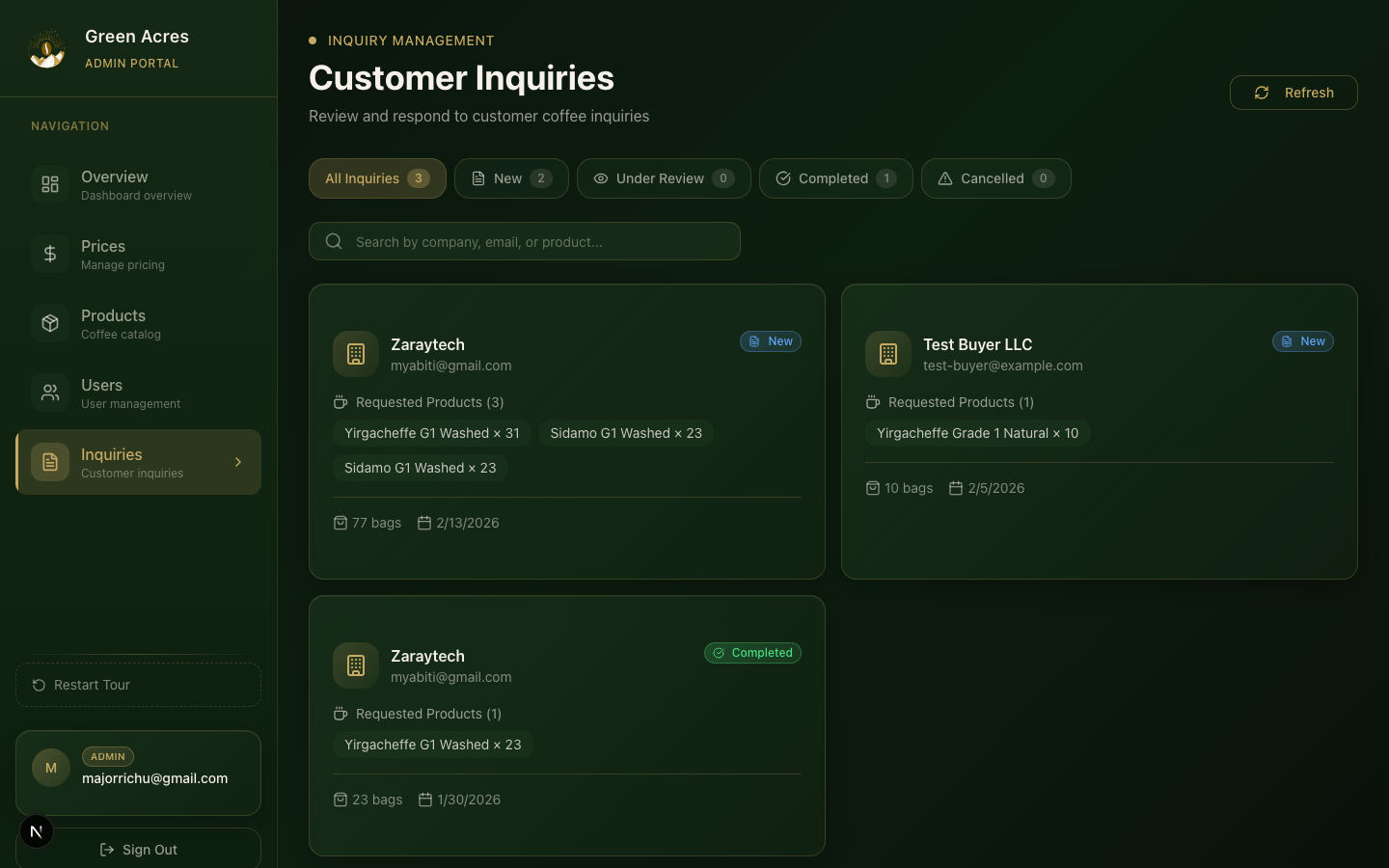
Inquiry Management
View and respond to buyer inquiries:
- Navigate to Inquiries in the sidebar
- Click on an inquiry to view details
- Update the status as you process the request
- Add internal notes for your team
Inquiry Statuses
- Pending: New inquiry, needs review
- Reviewed: Under consideration
- Quoted: Quote sent to buyer
- Completed: Transaction complete
- Rejected: Inquiry declined
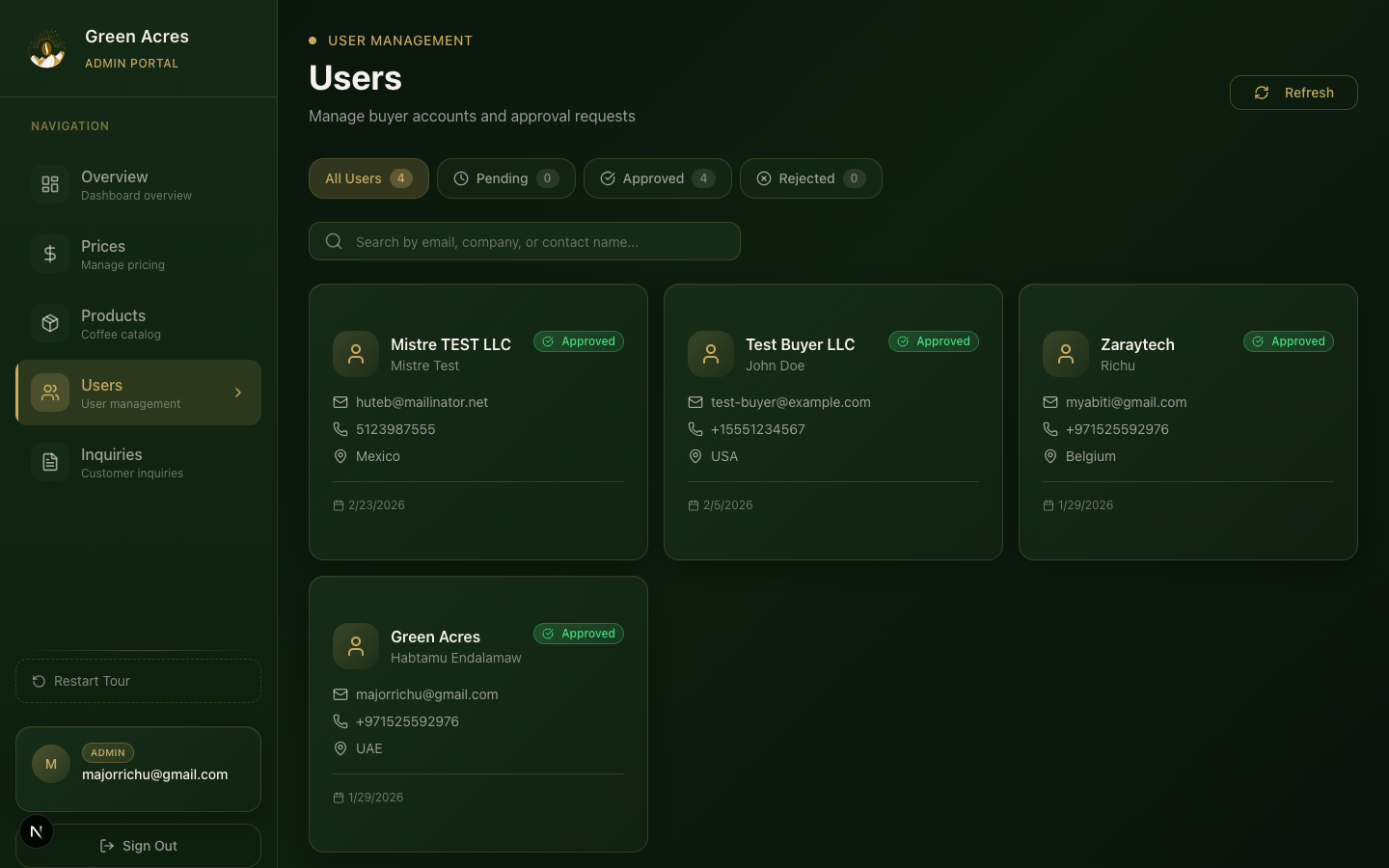
User Management
Manage platform users and their roles:
Viewing Users
Navigate to Users to see all registered accounts:
- Name and email
- Role (buyer/admin)
- Registration date
- Last login
Changing User Roles
- Locate the user in the table
- Click the Role dropdown
- Select the new role (buyer or admin)
- Changes are saved automatically
Be careful when granting admin access. Admins have full control over the platform.
Prices
Manage delivery locations and associated pricing:
- Navigate to Pricing in the sidebar
- Add/edit/remove delivery locations
- Set pricing multipliers per location